Kube4Sure User’s Guide
Table of Contents
How to register and login Kube4Sure.
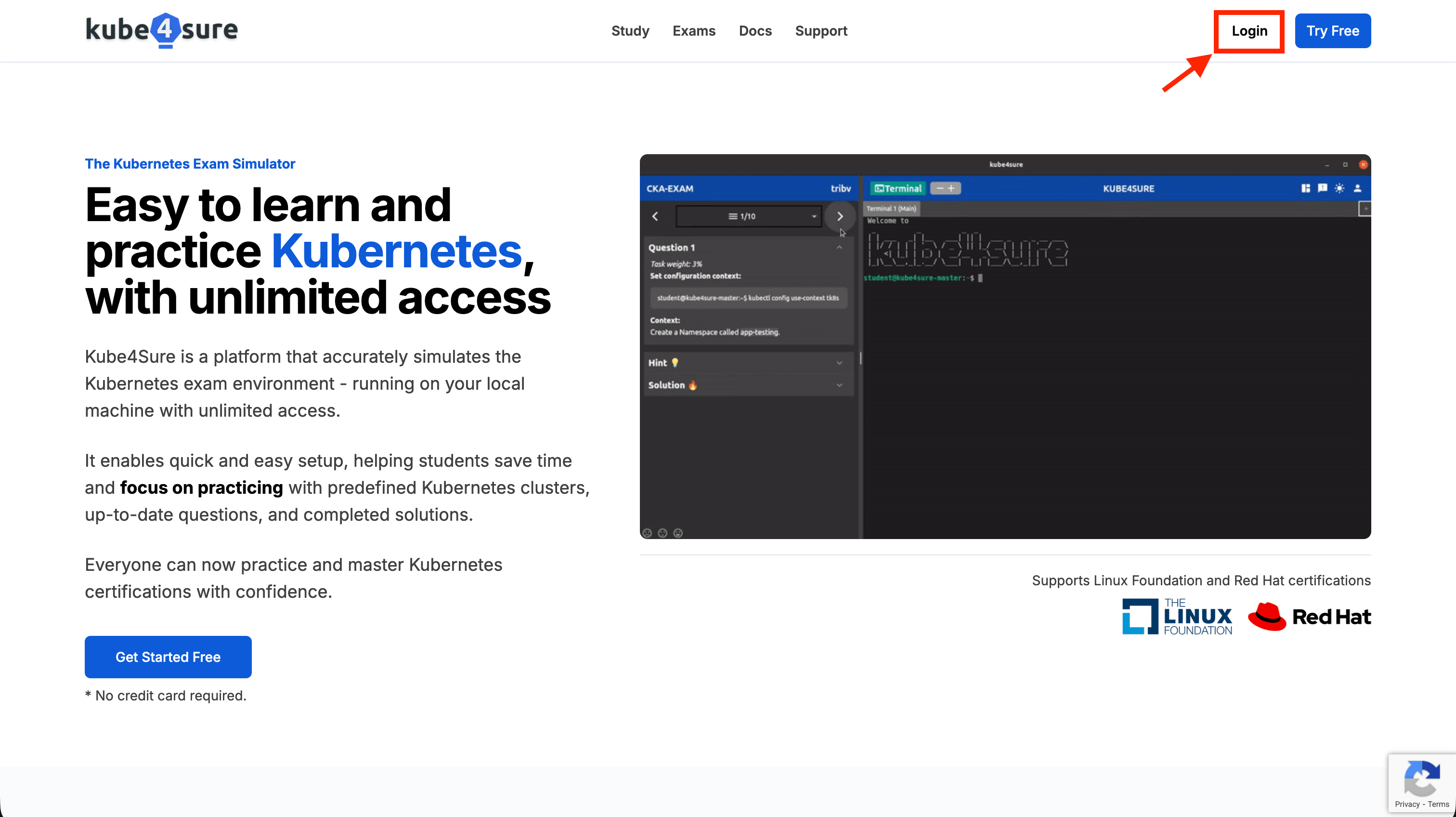
- Access kube4sure website on your web browser and choose “Login”.
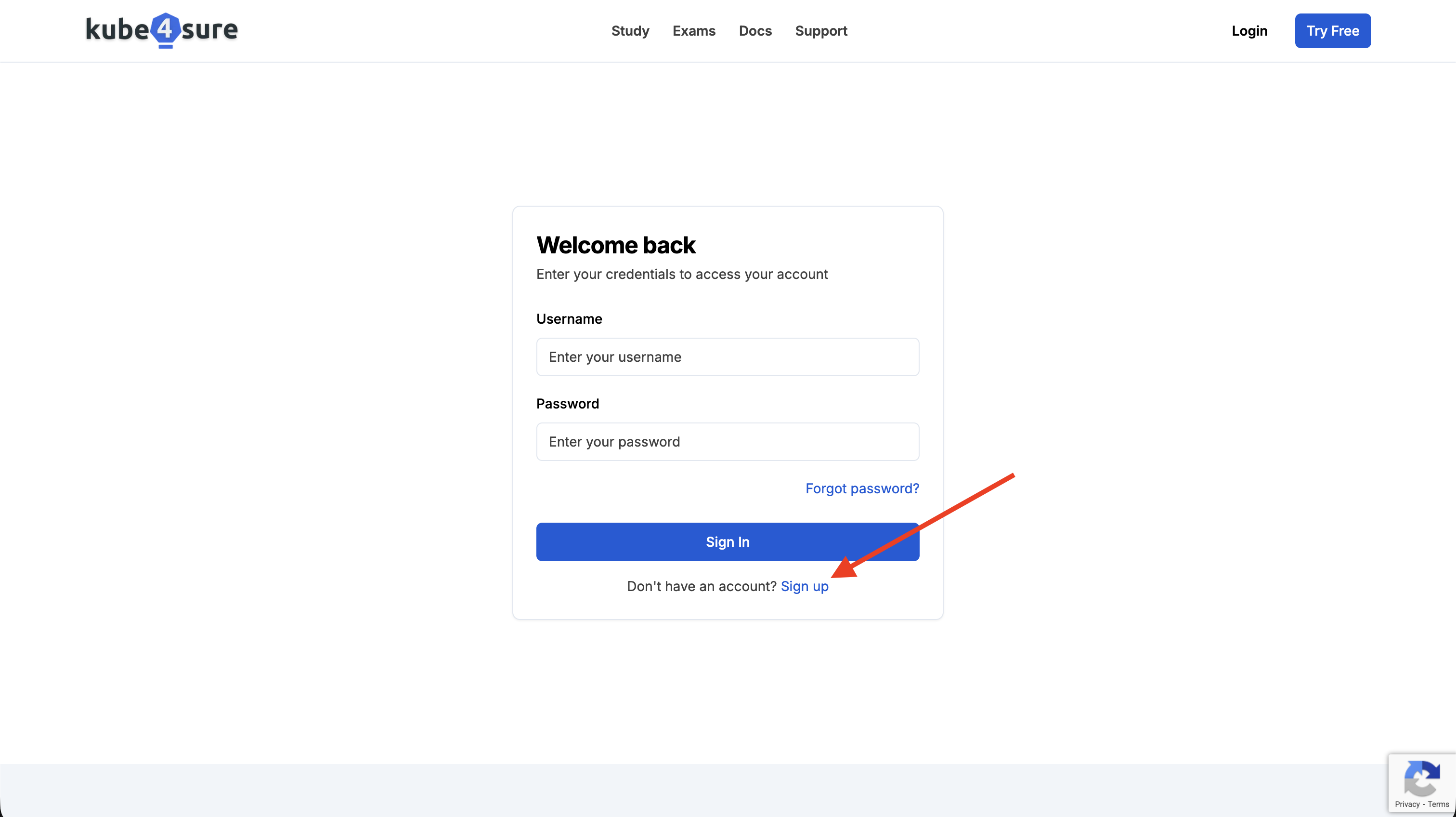
- Choose “Sign up” to register a new Kube4Sure account or access the register page.
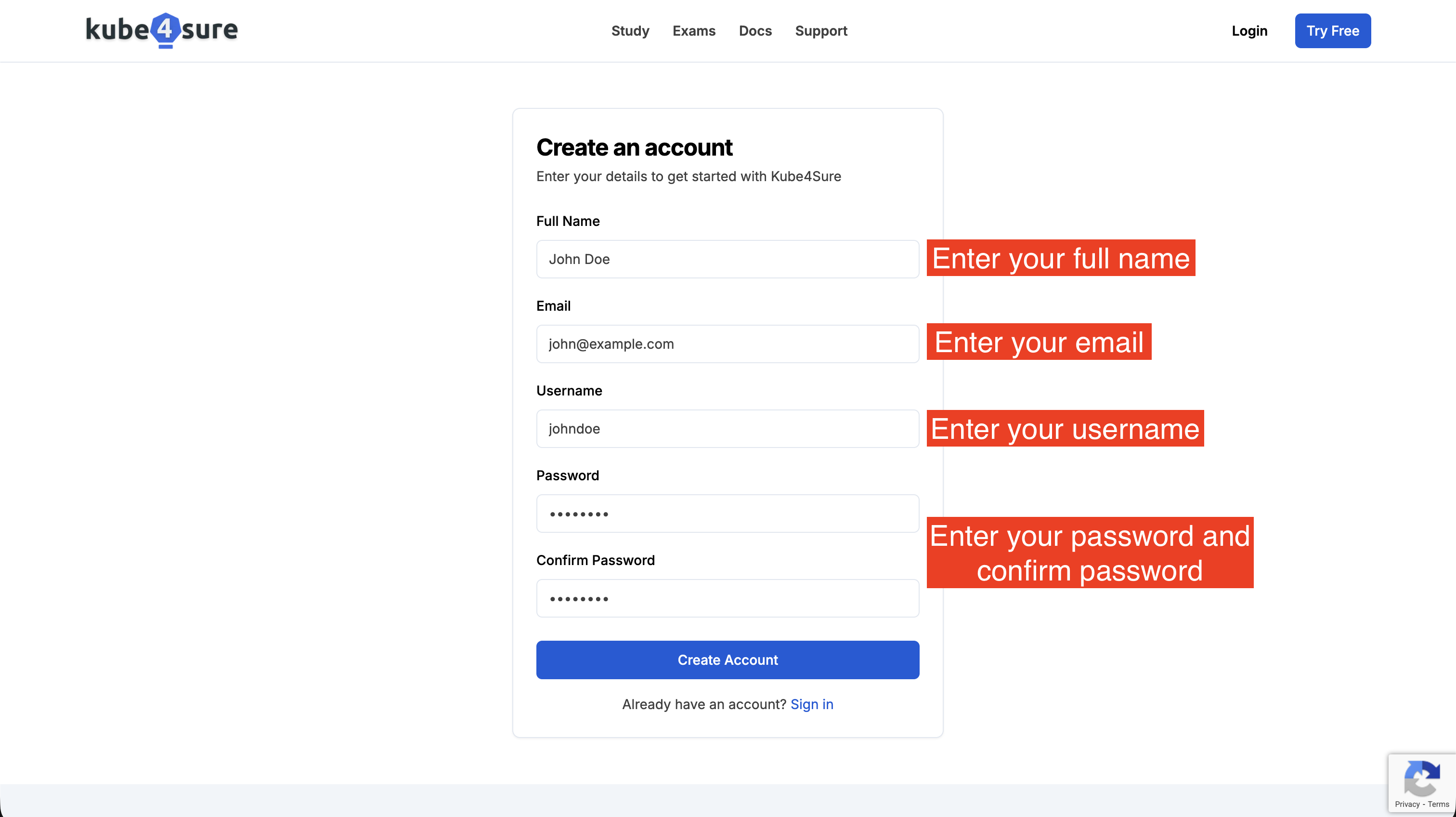
- Enter your information you want to use for a new Kube4Sure account.
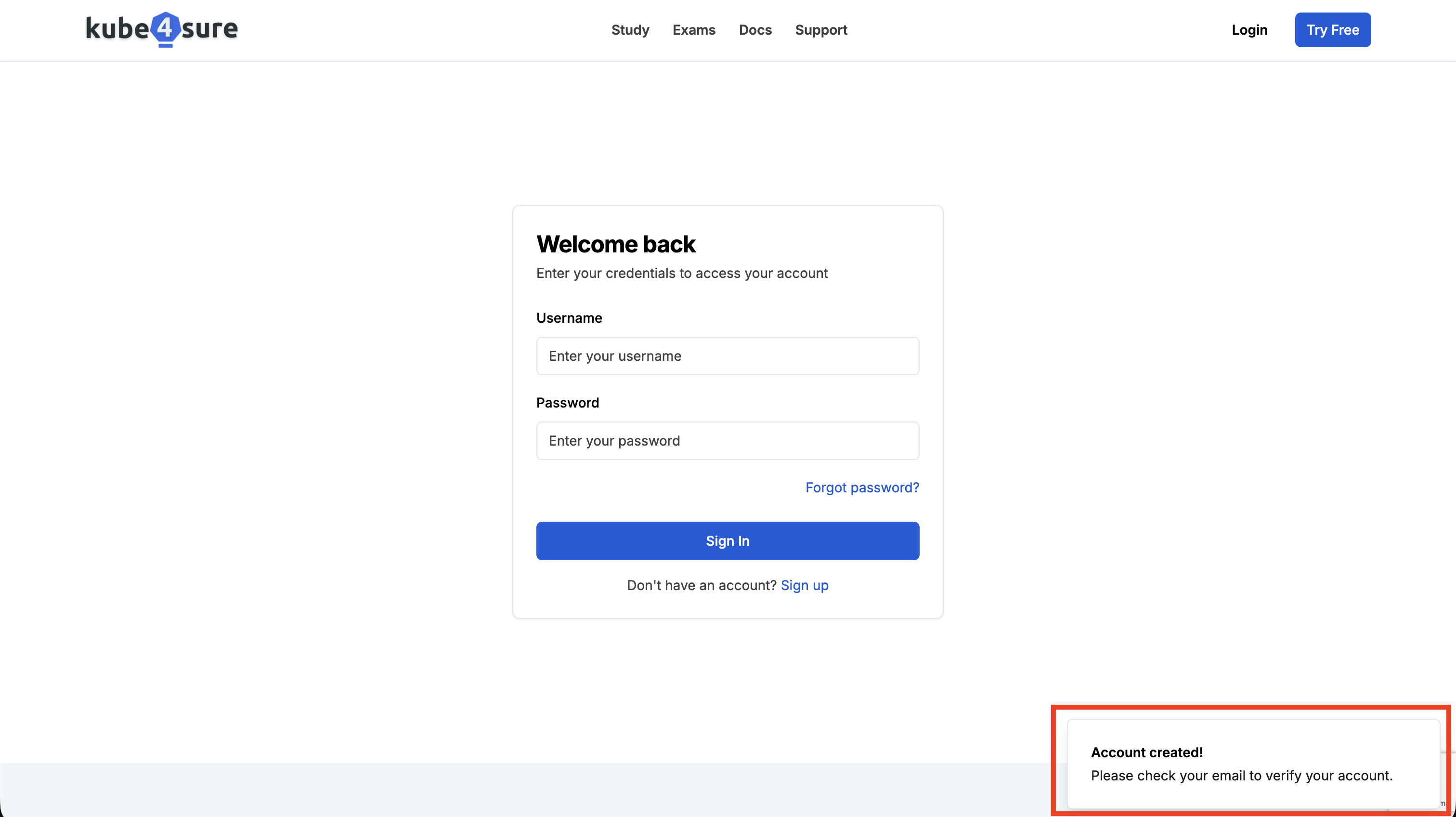
- After registered, you will receive the notification “Account created! Please check your email to verify account”.
- Check your email to verify account.
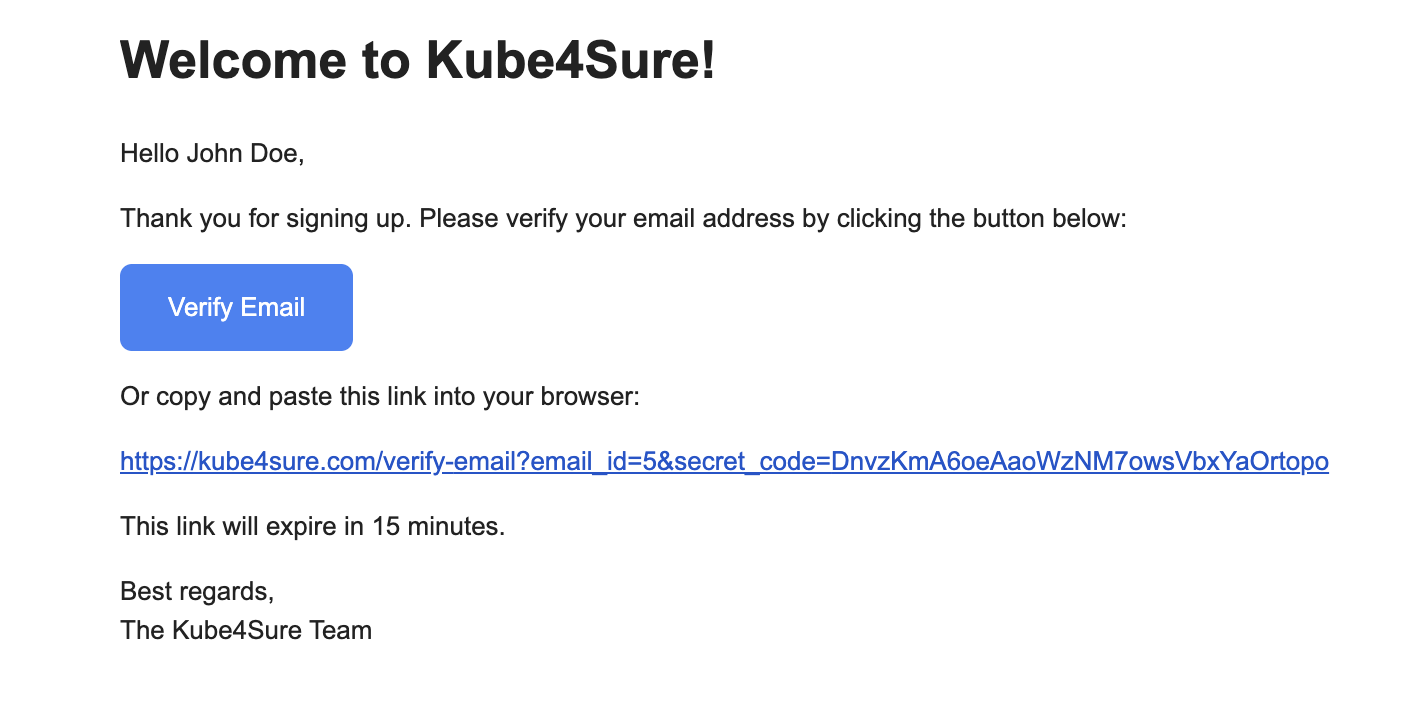
- Login your account to Kube4Sure.
System Requirements
Supported platforms and systems:
- CPU: Intel CPU VT-x/EPT 2 x 1.3GHz or faster core speed
- 4GB RAM minimum/ 6GB RAM or more recommended
- 50 GB of disk space or more
- One of the following:
- VMware Workstation 14.0 or later
- VMware Fusion 8 or later
- VMware Player 14.0 or later
Unsupported hardware and systems
- Mac M1 and M2 CPU is not supported due issues with VMware Fusion.
- MS Hyper-V is not supported.
- Other virtual or nested cloud platforms are not officially supported.
Get download links.
Get the Demo CKA Exam.
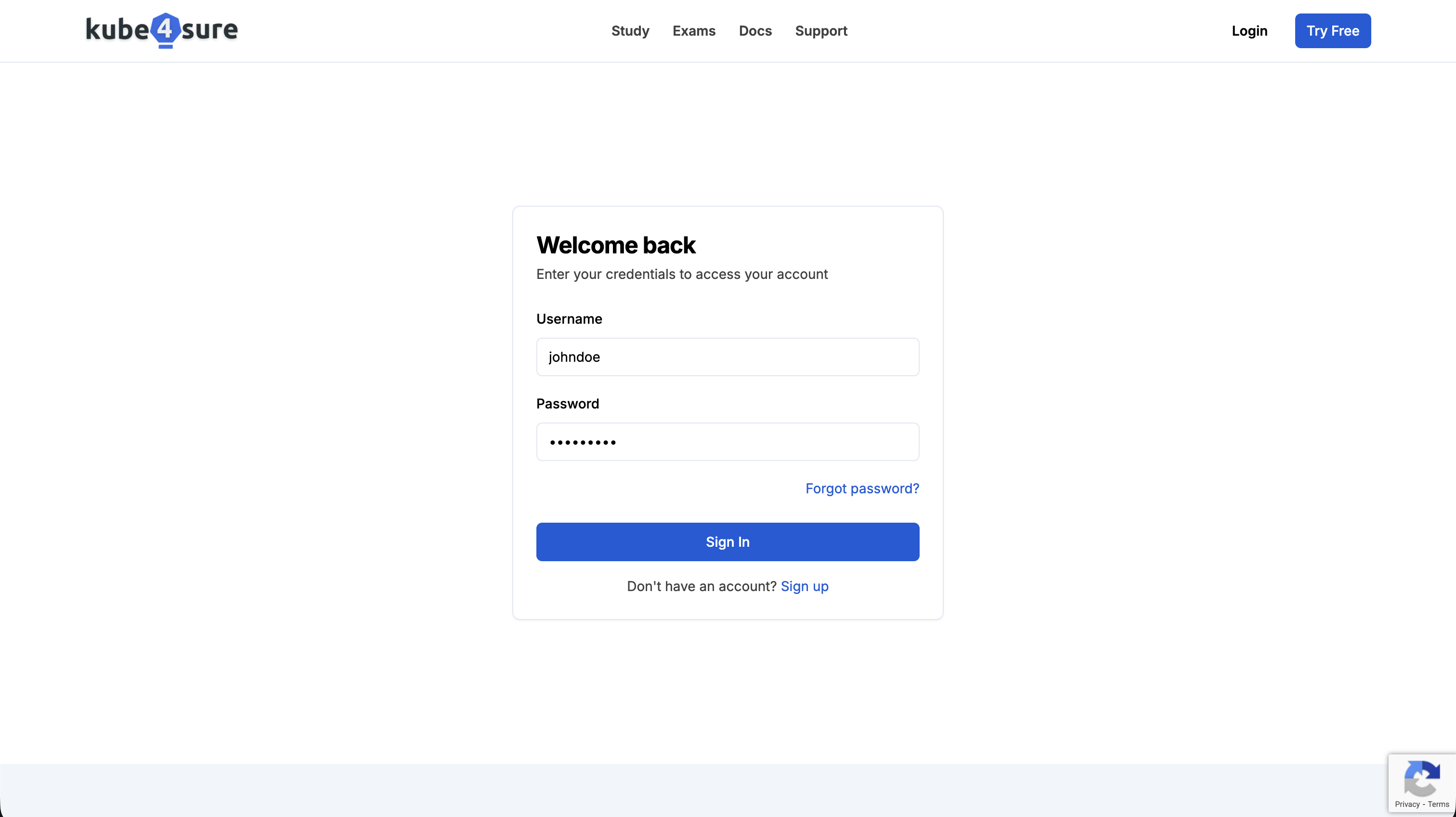
- Access the cka exam and scroll down to get the demo.
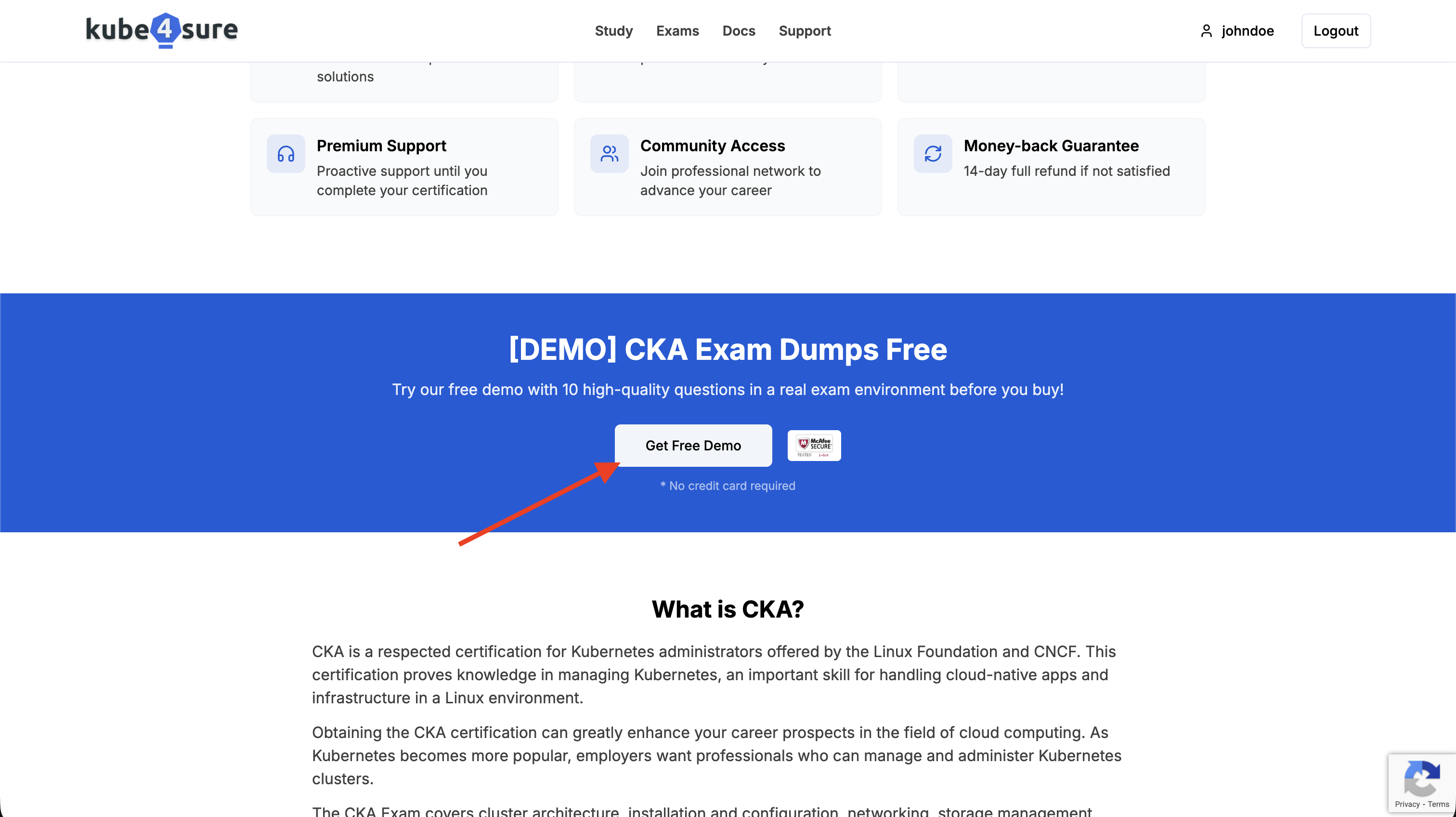
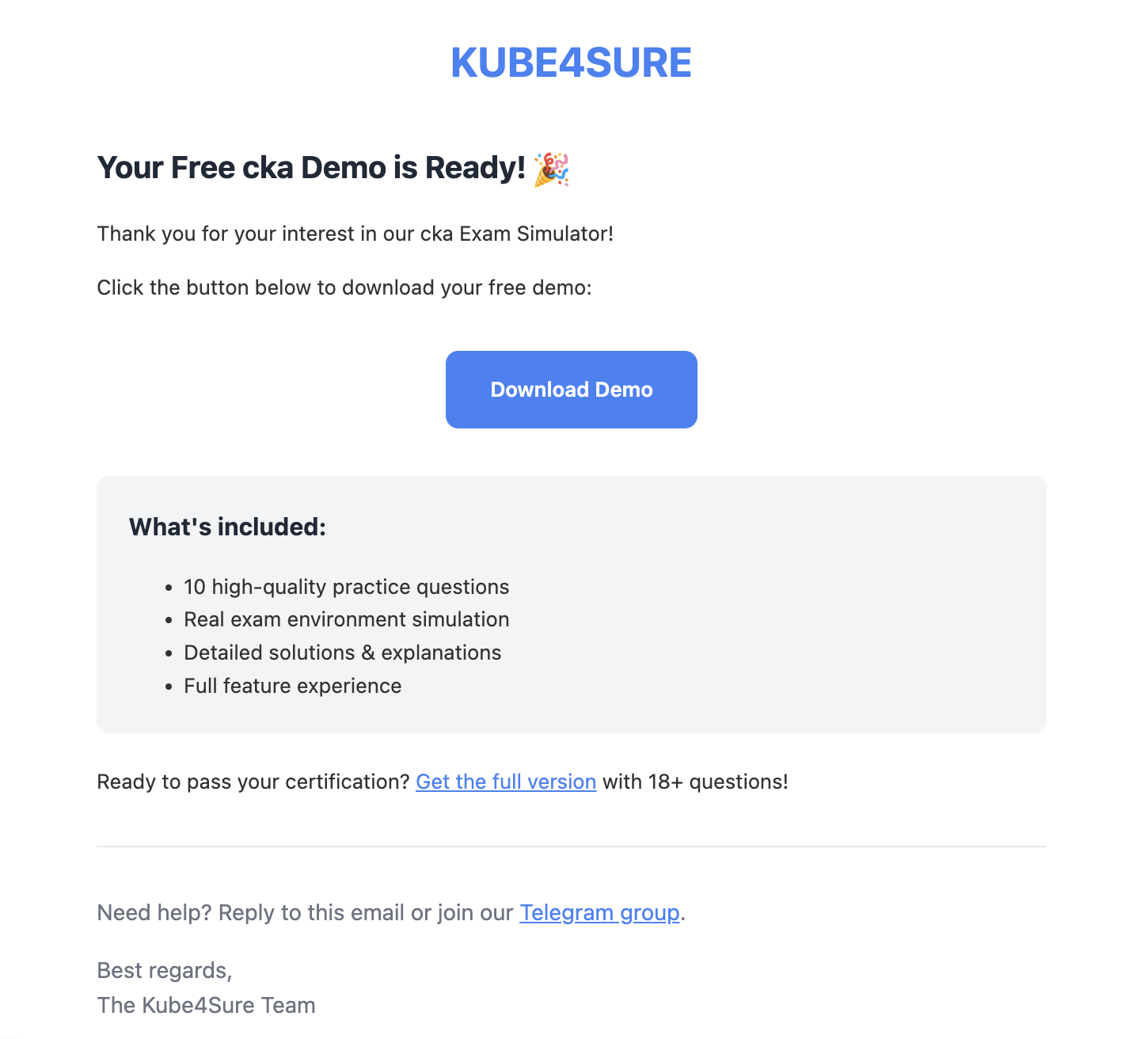
- Enter your email to receive the demo version from us.
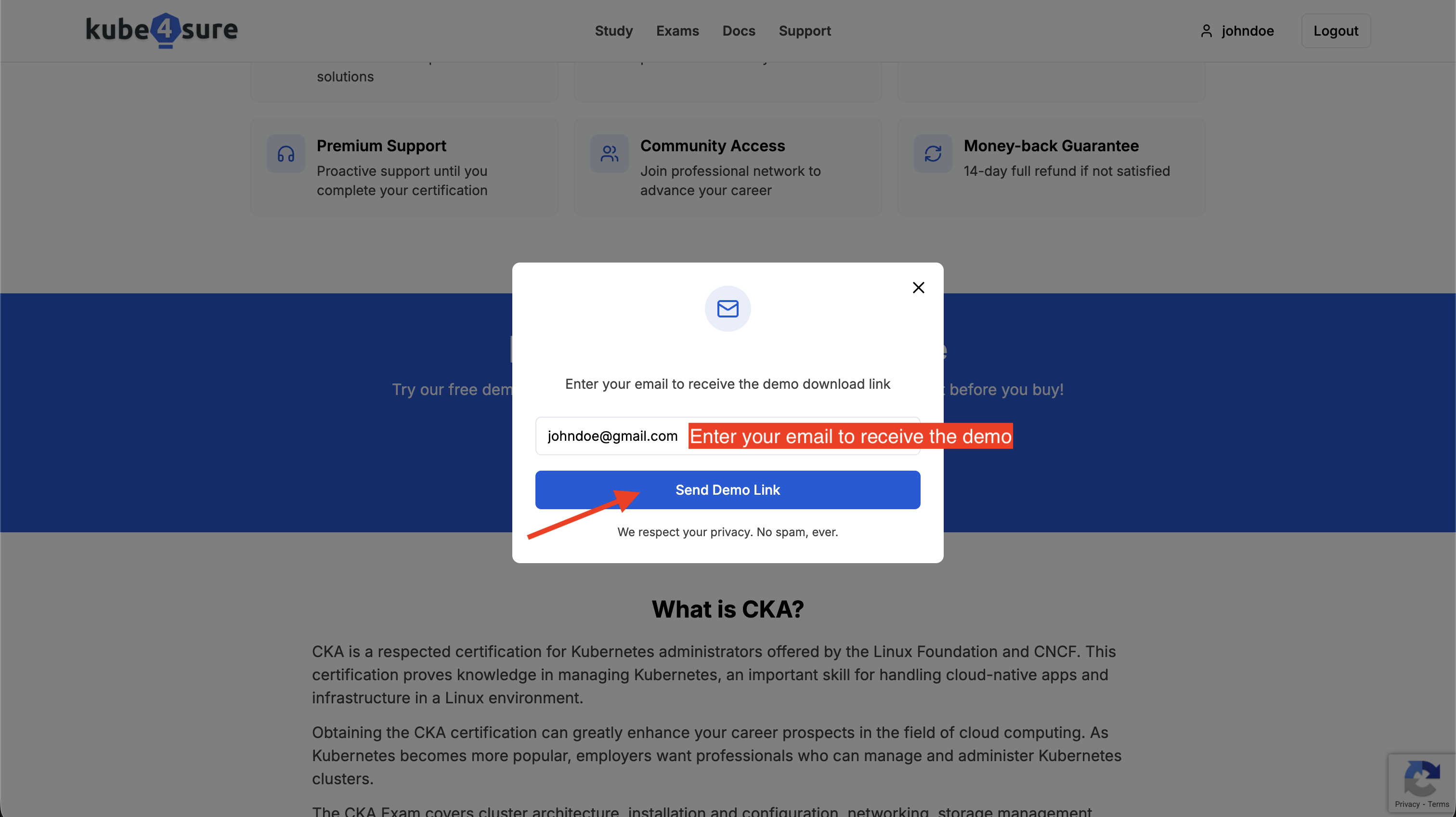
- Read the email and download the Demo CKA Exam
Get the Kube4Sure CKA Exam.
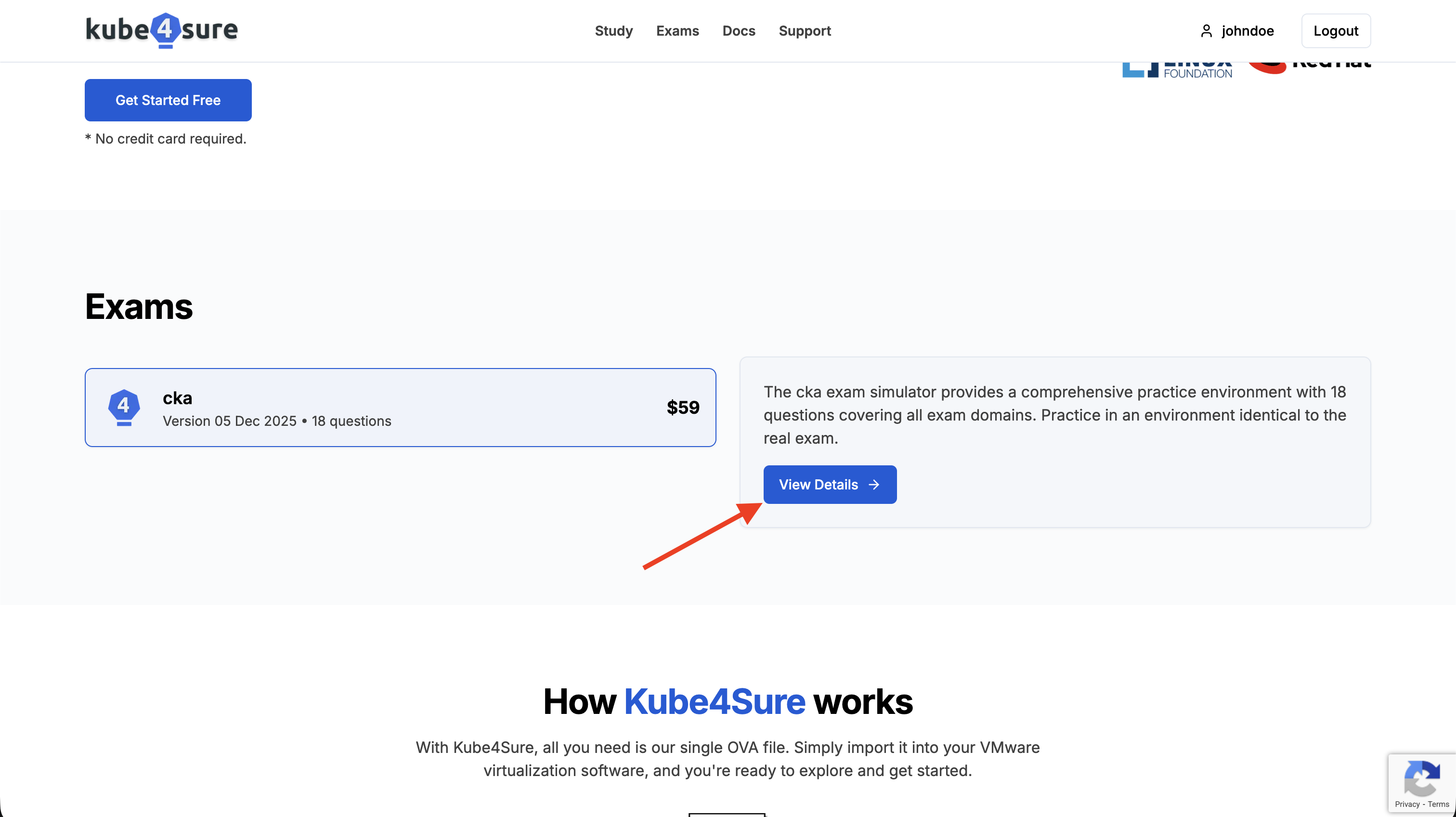
- Tap your exam you want to get. For example, learn more CKA Exam or access the cka exam.
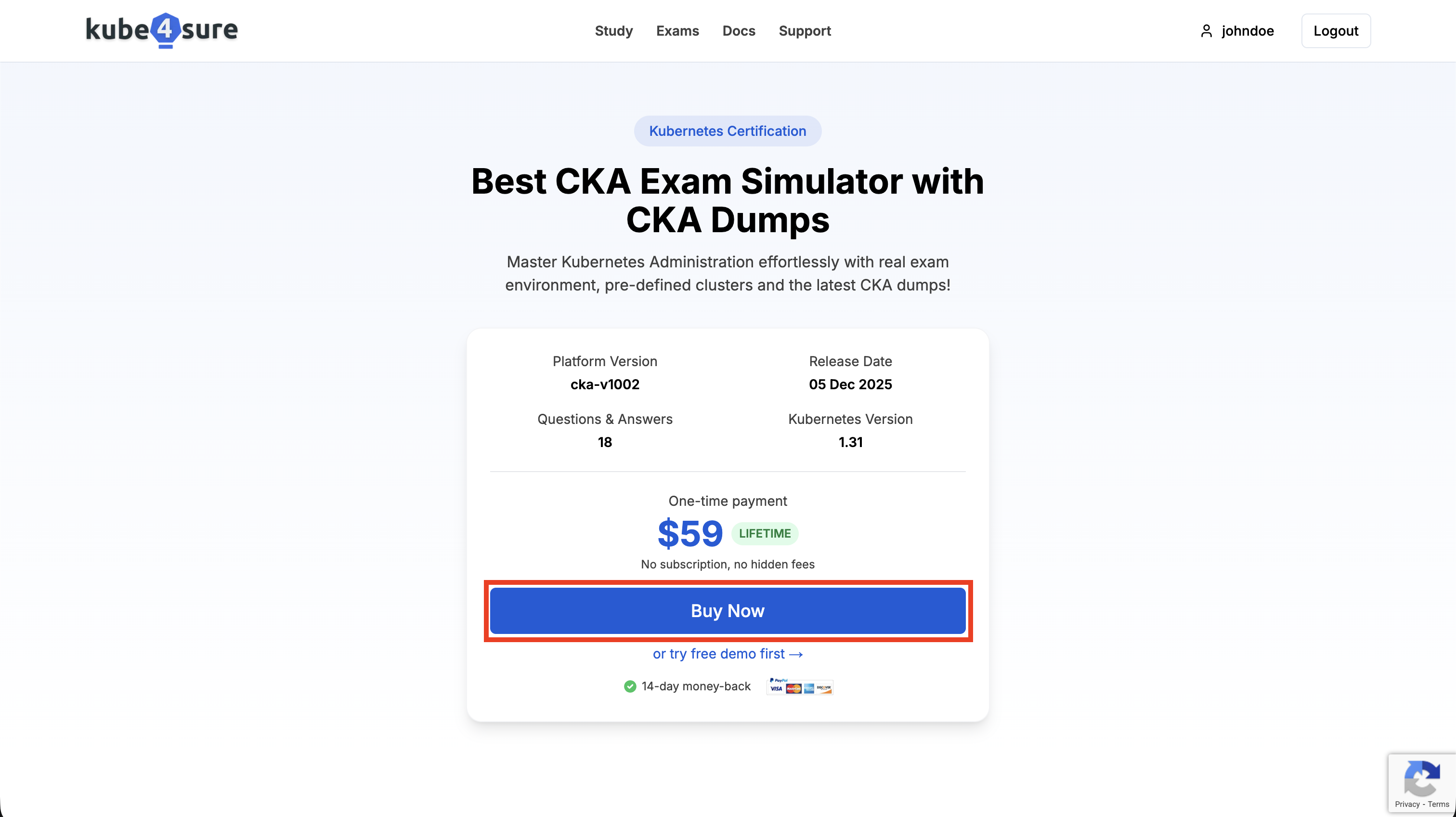
- Choose “Buy now” to get CKA Exam or access the checkout page.
- (Optional) Enter your promotion code if you have.
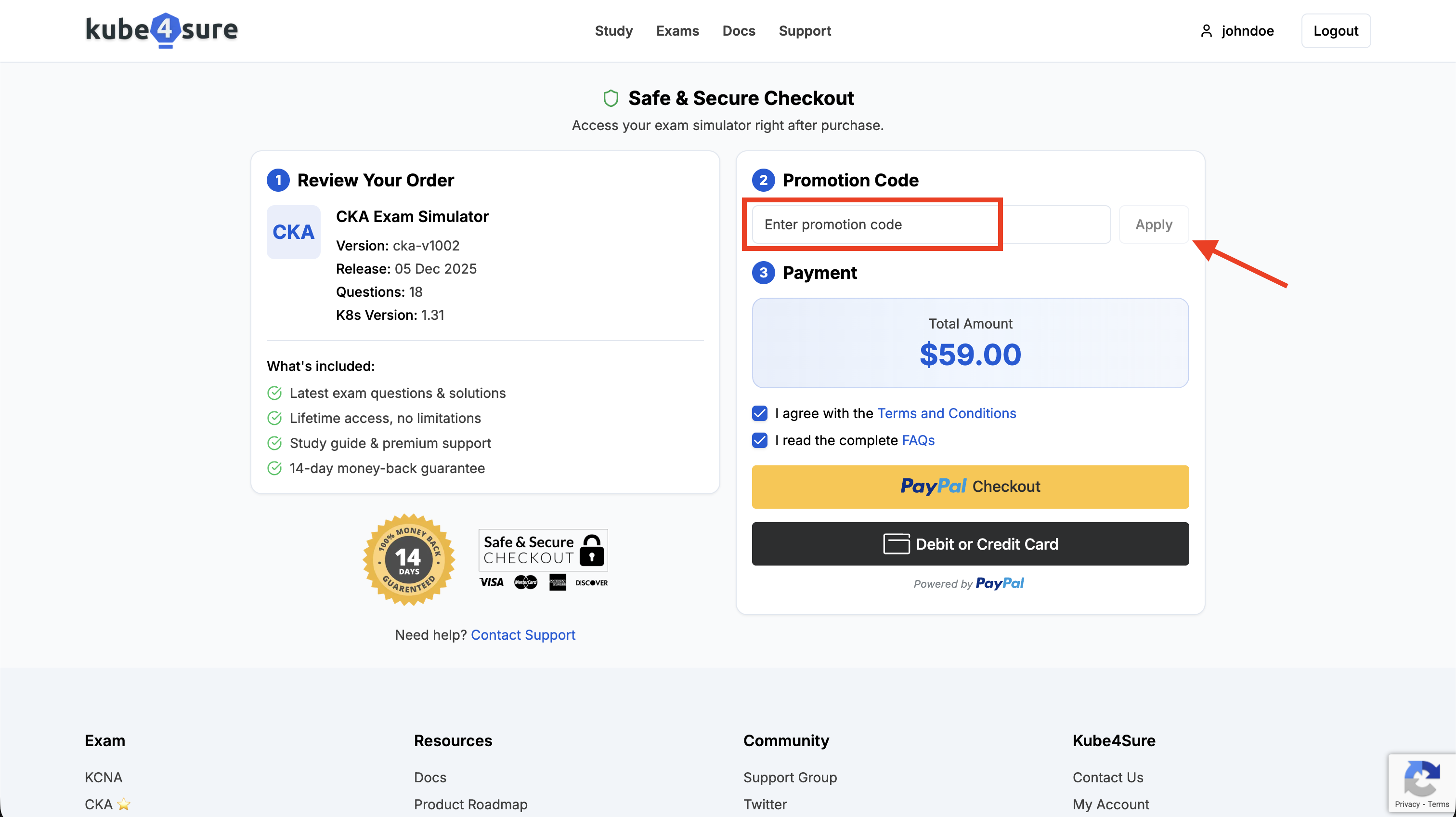
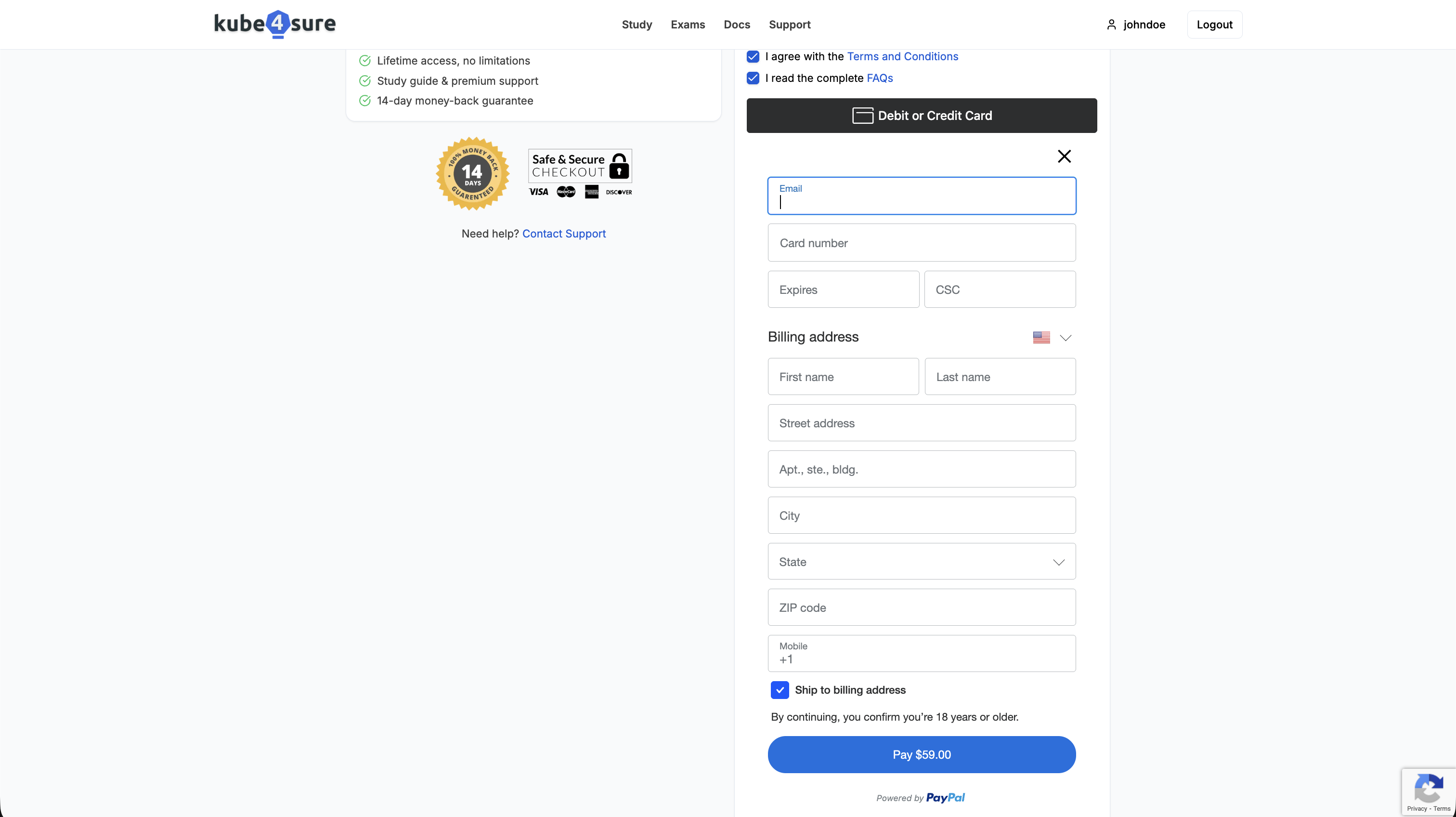
- In Kube4Sure, we support Debit or Credit Card (VISA,Master Card) and Paypal.
- To pay with PayPal, simply log in to your PayPal account during checkout.
- To pay with a debit or credit card, enter your card information during checkout. Accepted cards include Visa and Mastercard
Paying with PayPal

Paying with Debit/Credit Card. Consider specifying the card information needed such as card number, expiration date, CVC/CVV number.
VMware Workstation or Player OVA deployment
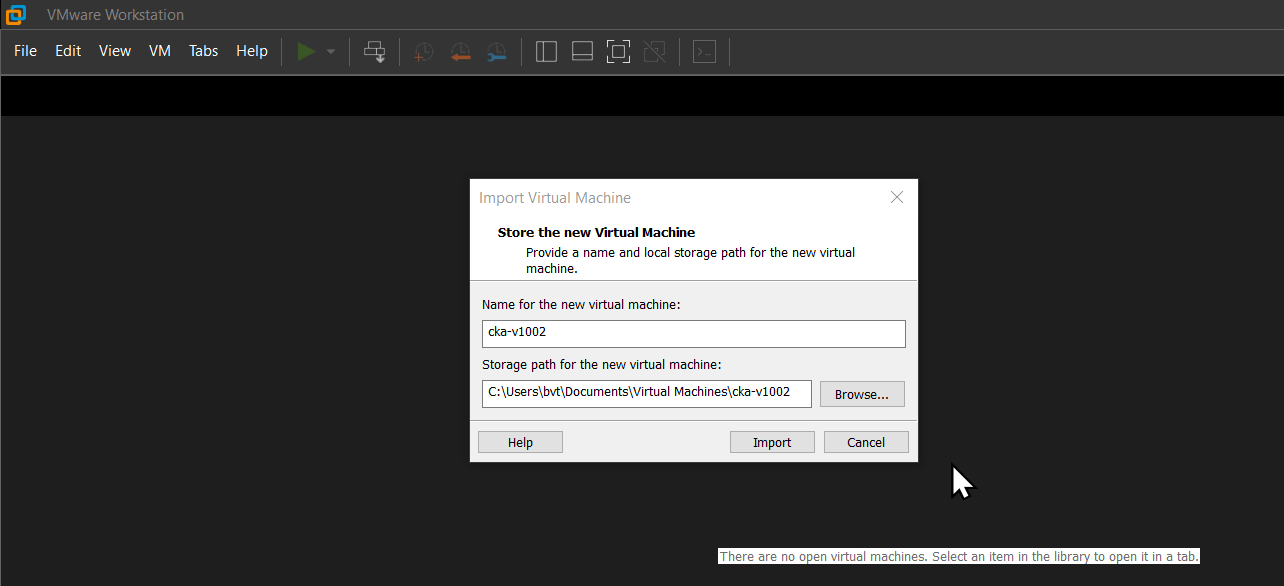
- Download the OVA file from link download.

- Double-click to import the Kube4Sure CKA Exam.
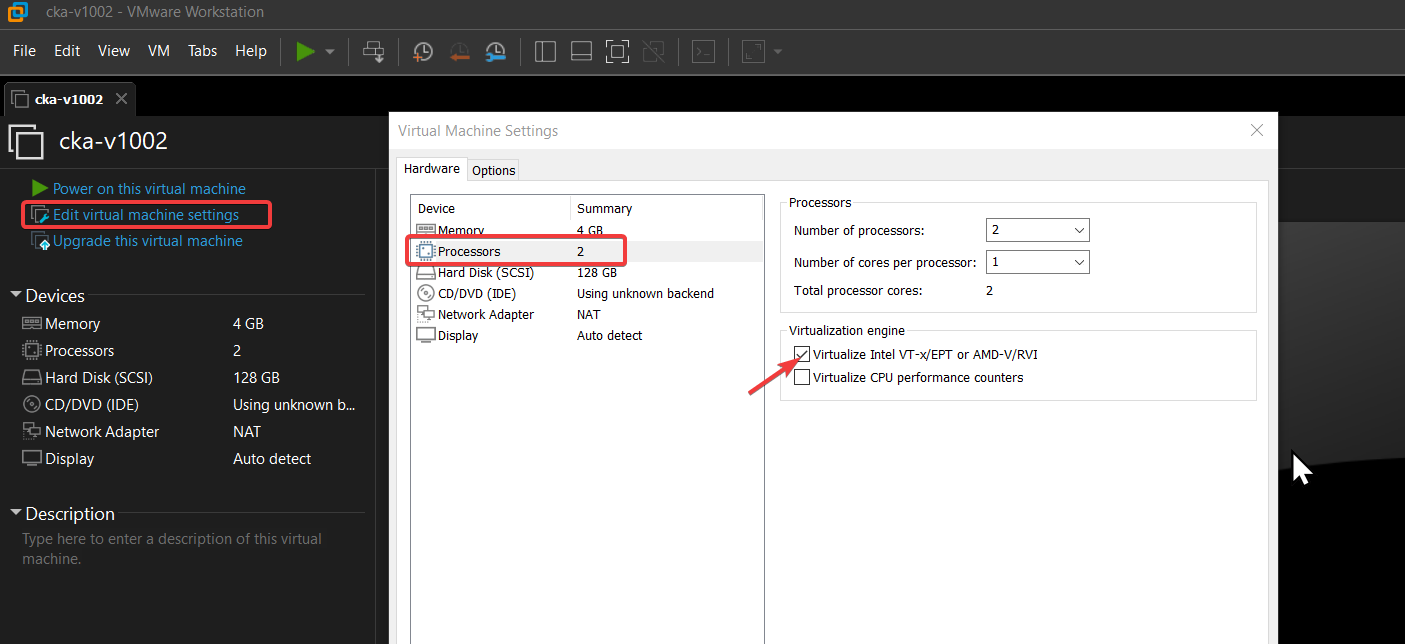
- Open your VM settings.
NOTE: VMware Player will display only one CPU option: Number of processors.
- Enable Virtualize Intel VT-x/EPT.
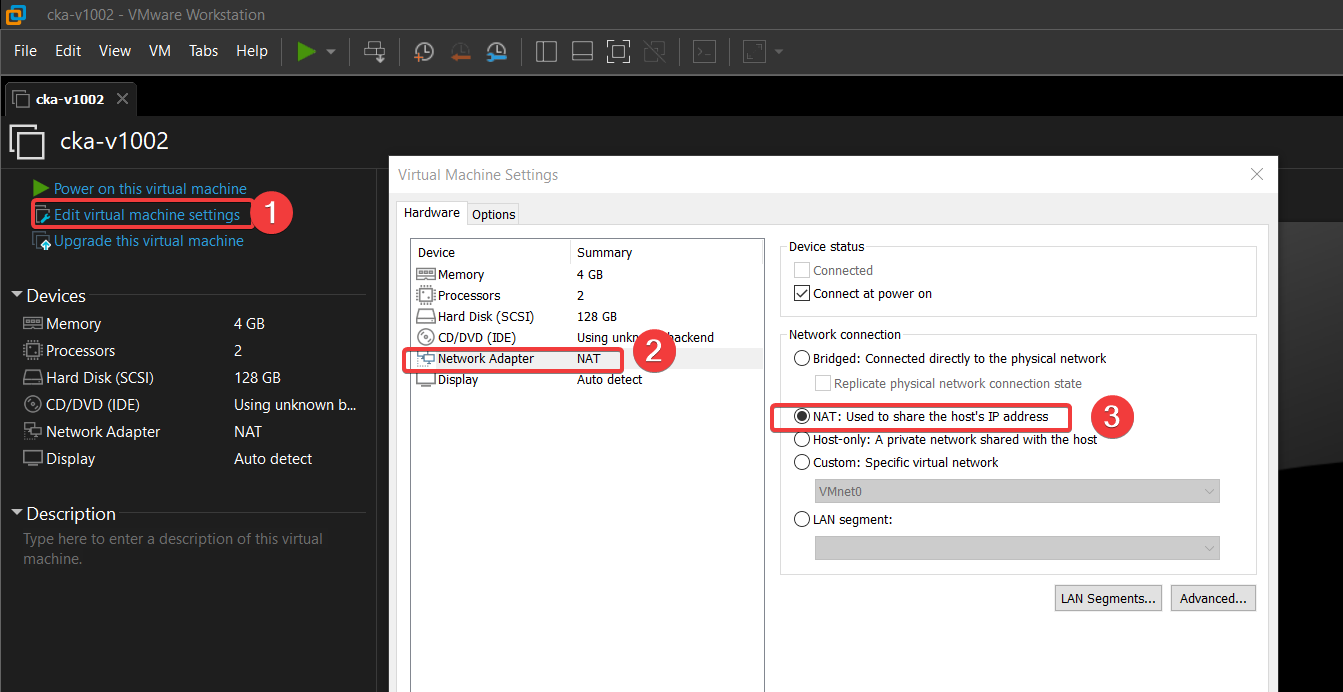
- It is recommended to choose the NAT adapter option for best security and performance.
- Power on the Virtual Machine and enjoy the exam.
Demo CKA Exam
How to use the Demo CKA Exam
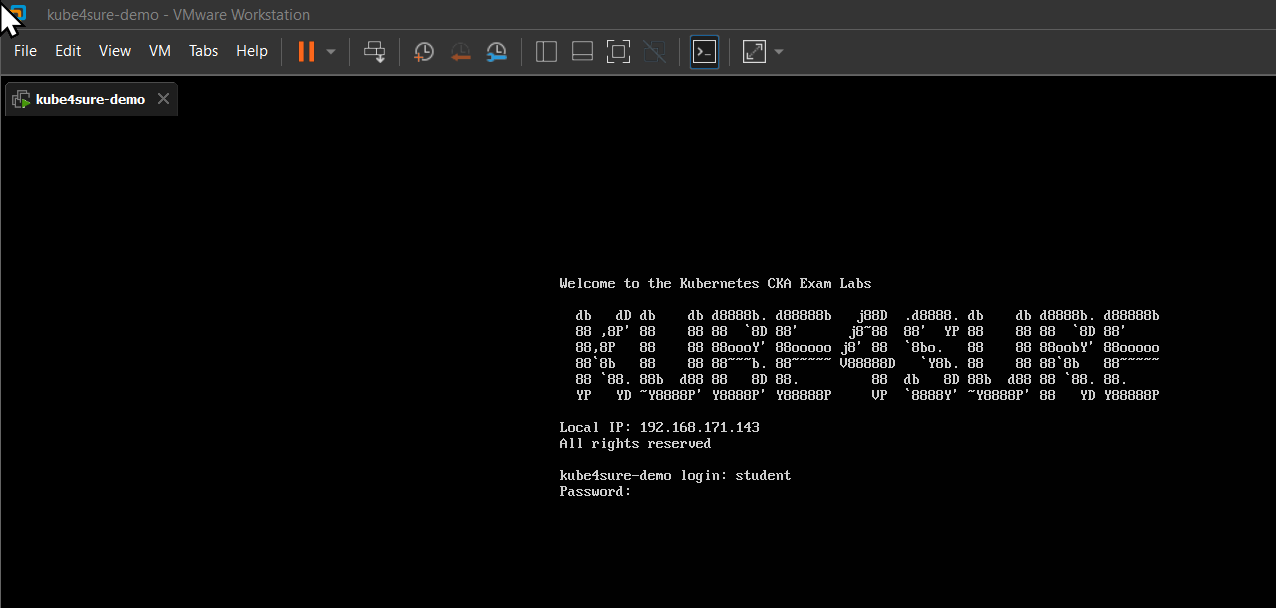
- Login default account: student/student
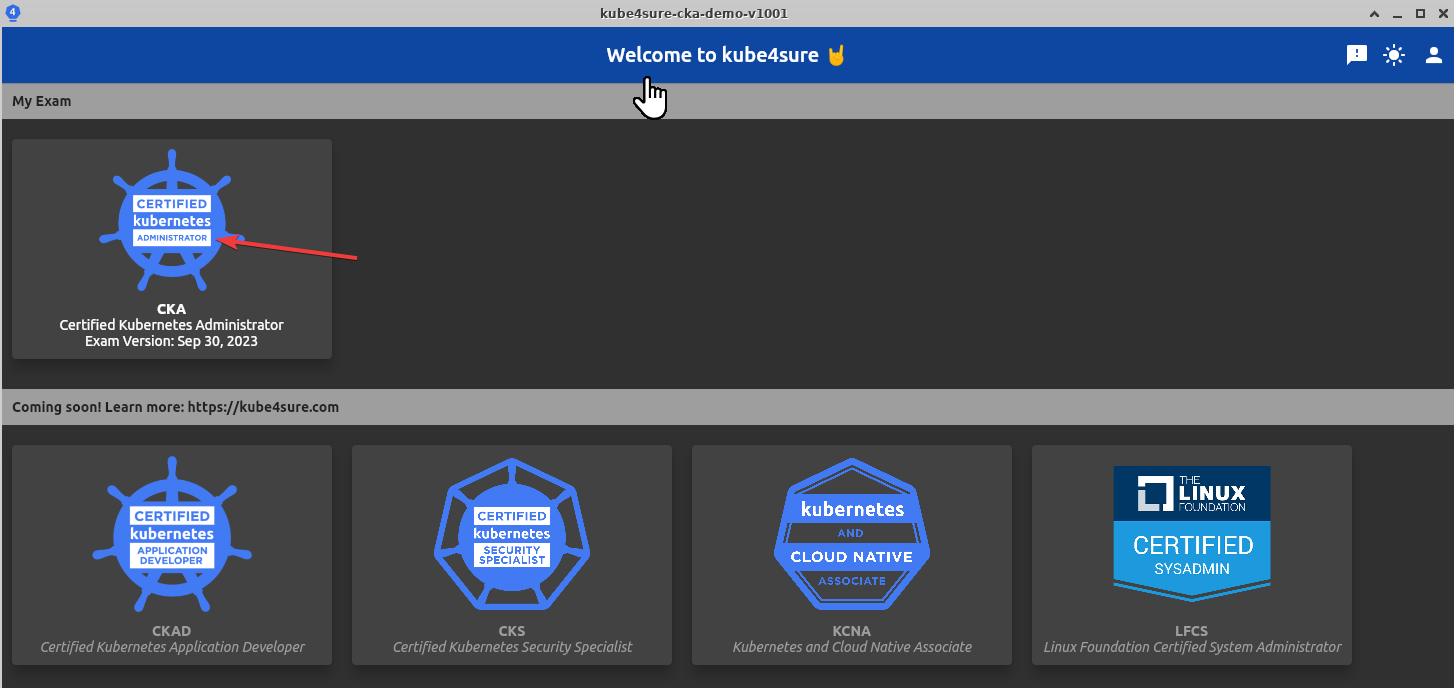
- Choose the exam you registered.
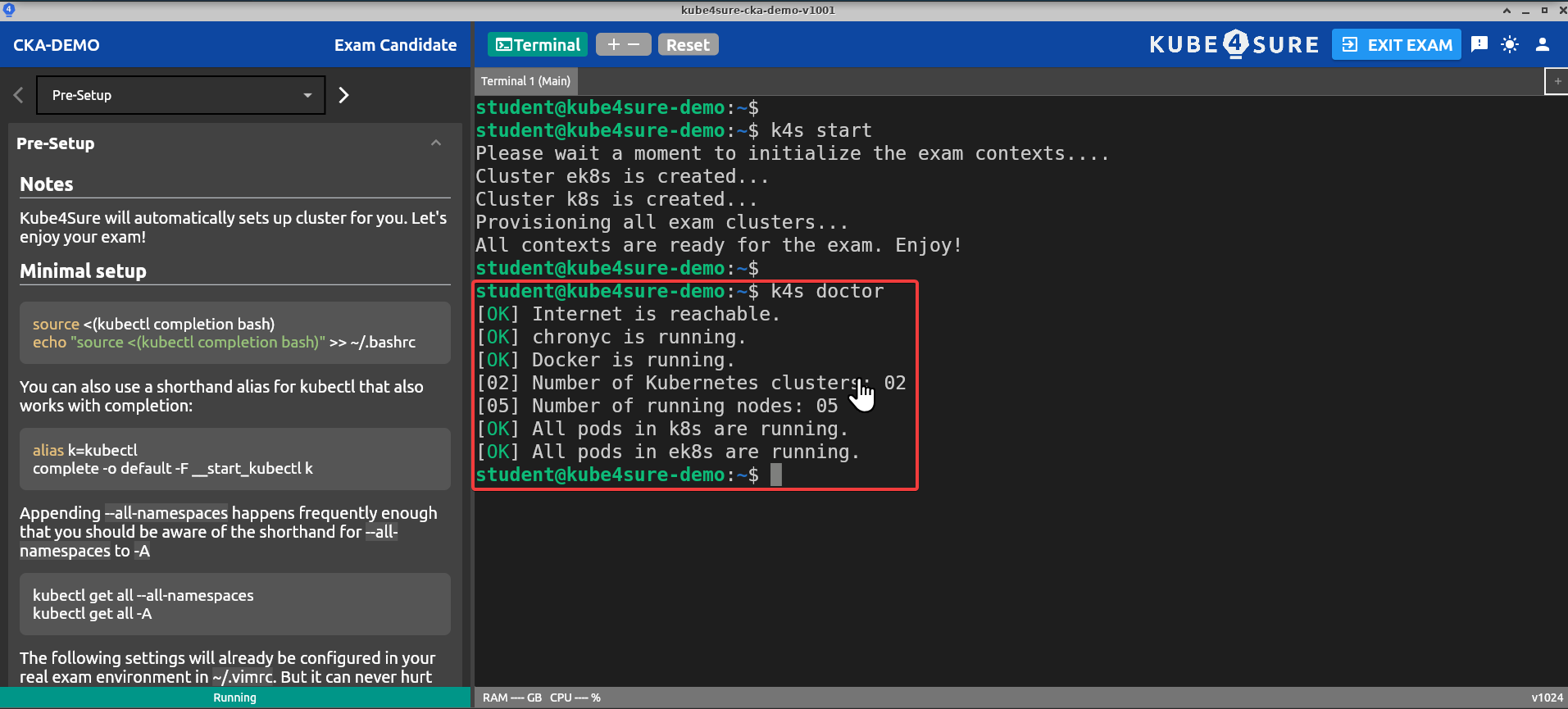
- Run ‘k4s start’ and ‘k4s doctor’ command.
- ‘k4s start’ to init all contexts for the exam.
- ‘k4s doctor’ to show information about the exam infrastructure.
Kube4Sure CKA Exam
How to use the Kube4Sure CKA Exam
Step 1: Login default and Kube4Sure account
- Default account: student/student
- Kube4Sure account
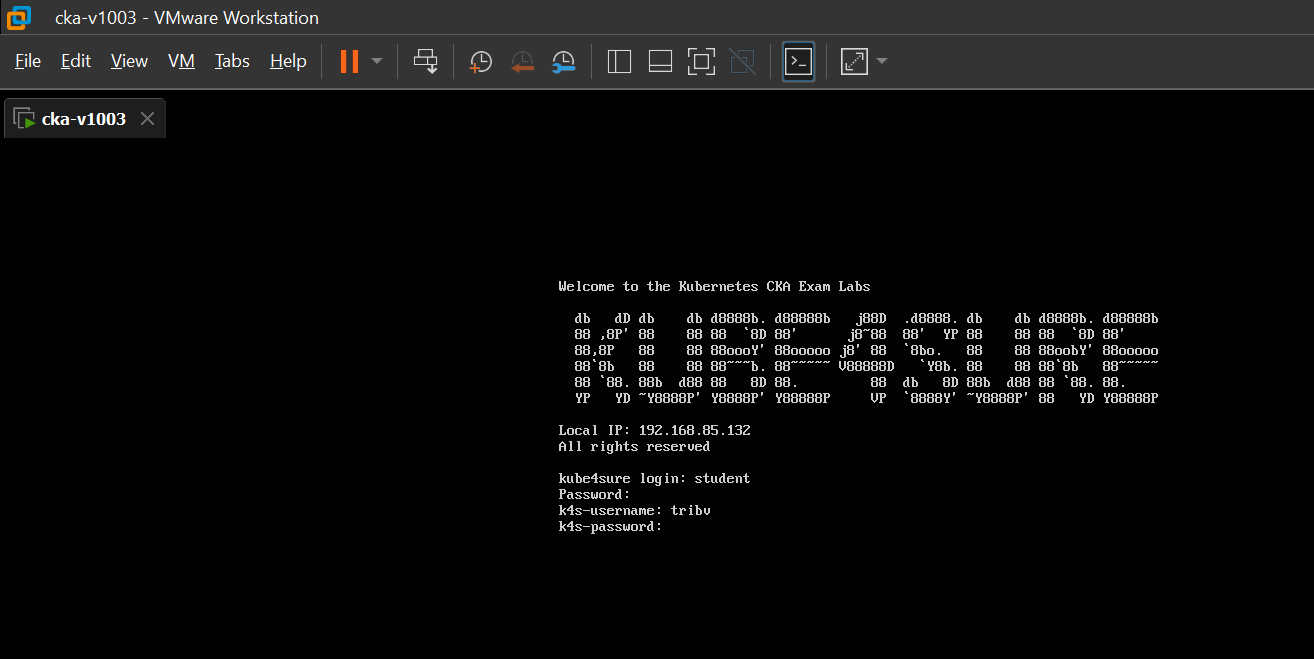
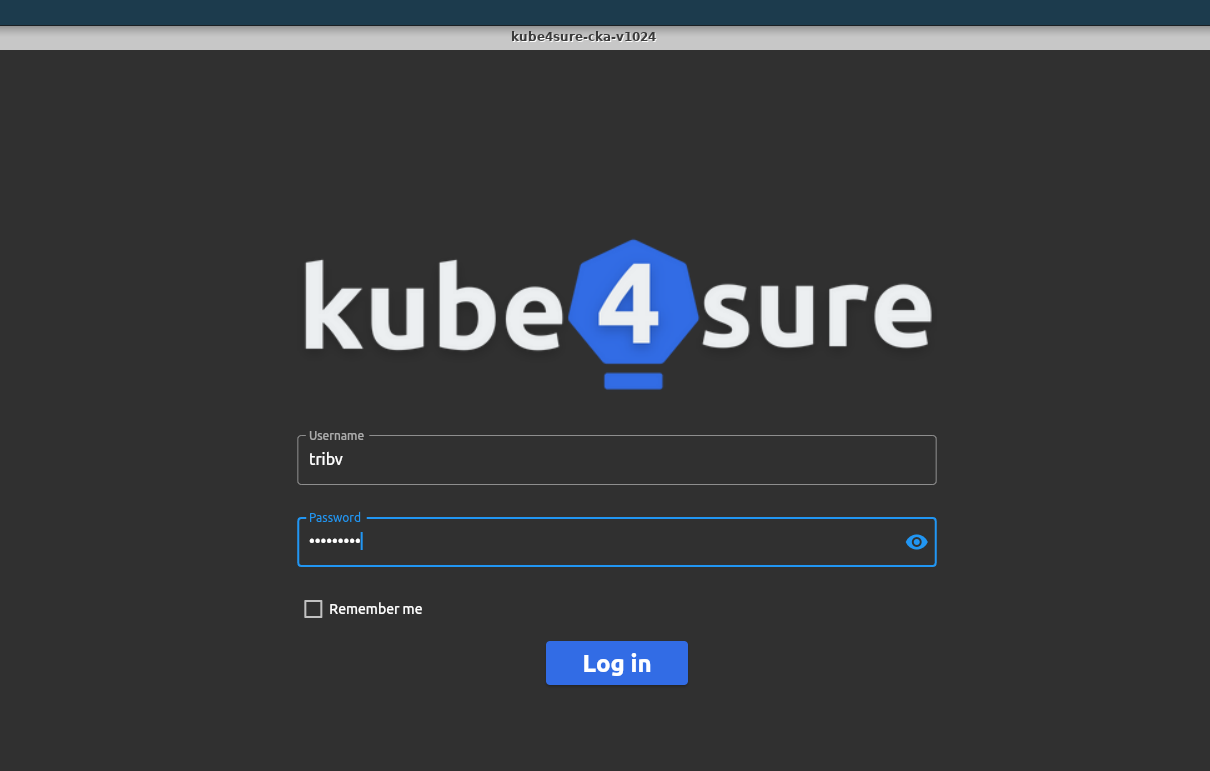
Step 2: Log in to Kube4Sure CKA Exam with k4s account.
*NOTE: A user can only log in once for each OVA file. If you need to change the virtual machine, please email kube4sure@gmail.com to request a license reset.*
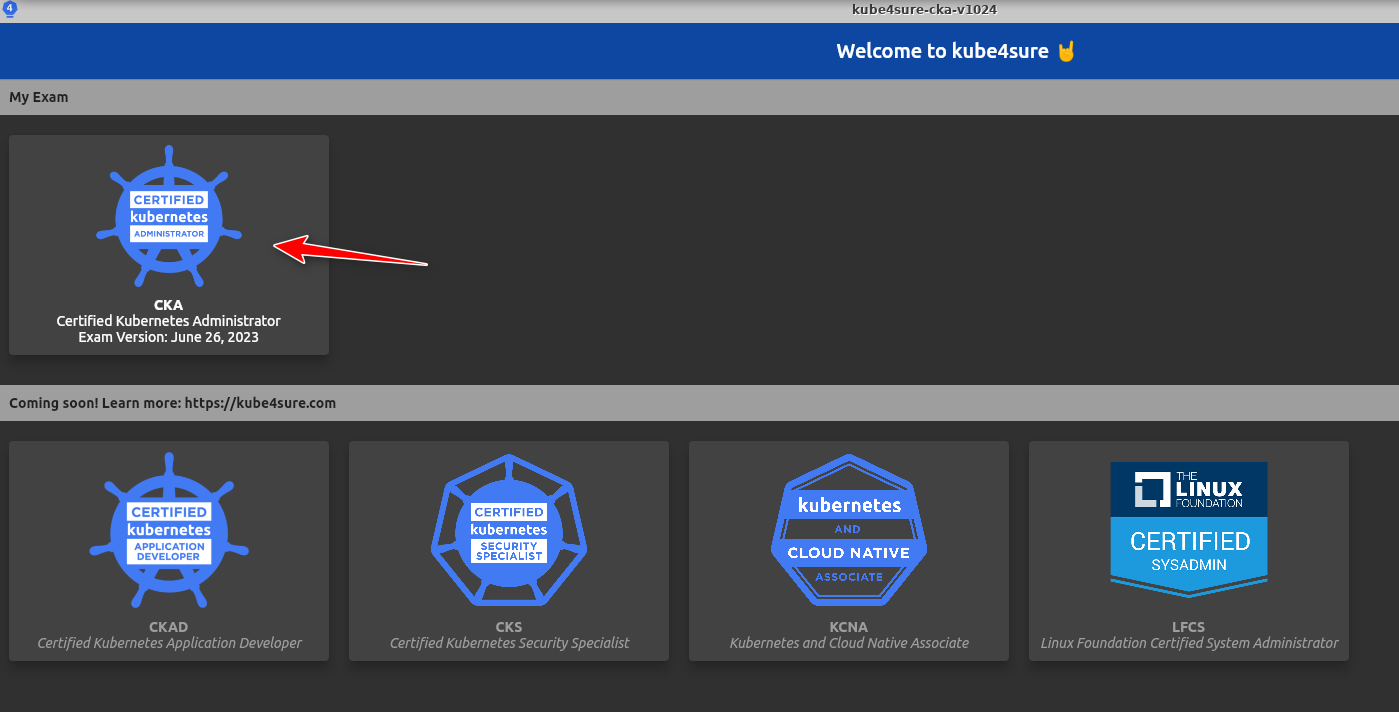
Step 3: Choose the exam you registered.
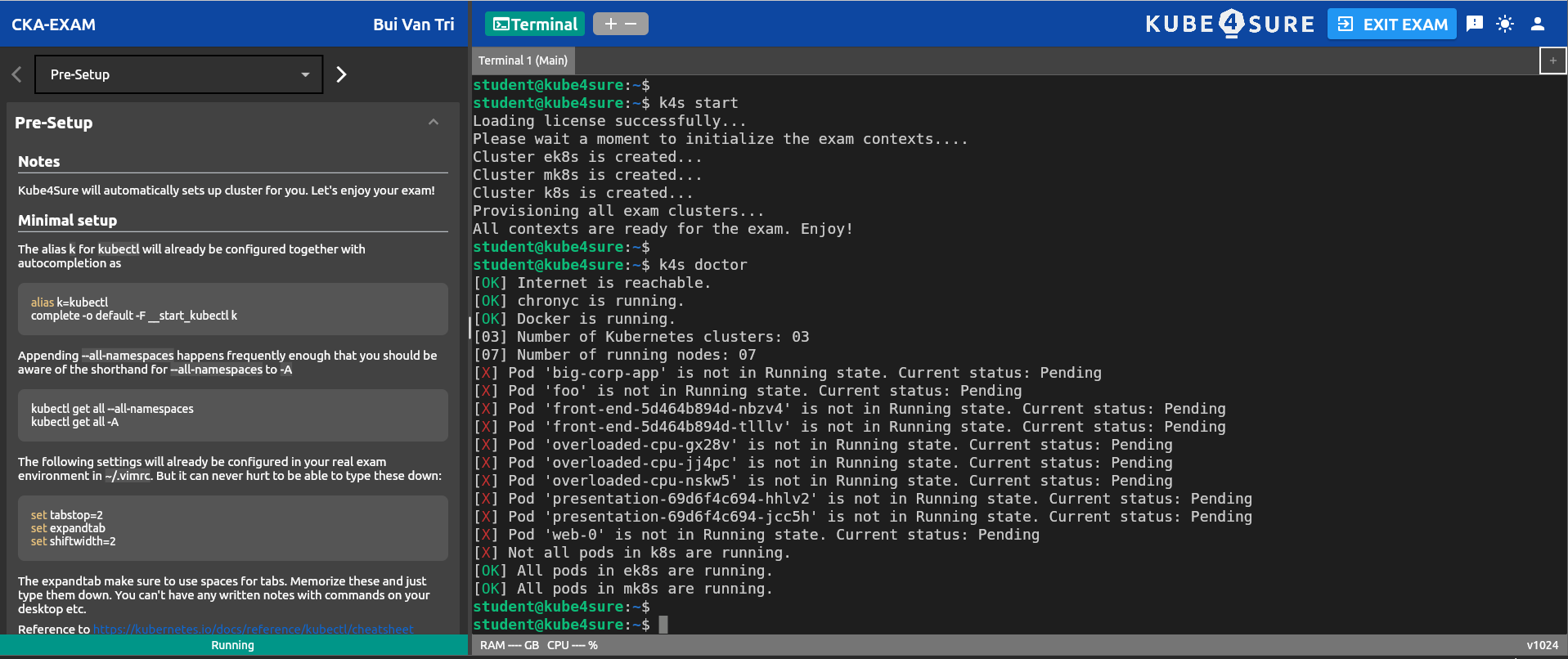
Step 4: Run ‘k4s start’ and ‘k4s doctor’ command.
- ‘k4s start’ to init all contexts for the exam.
- ‘k4s doctor’ to show information about the exam infrastructure.
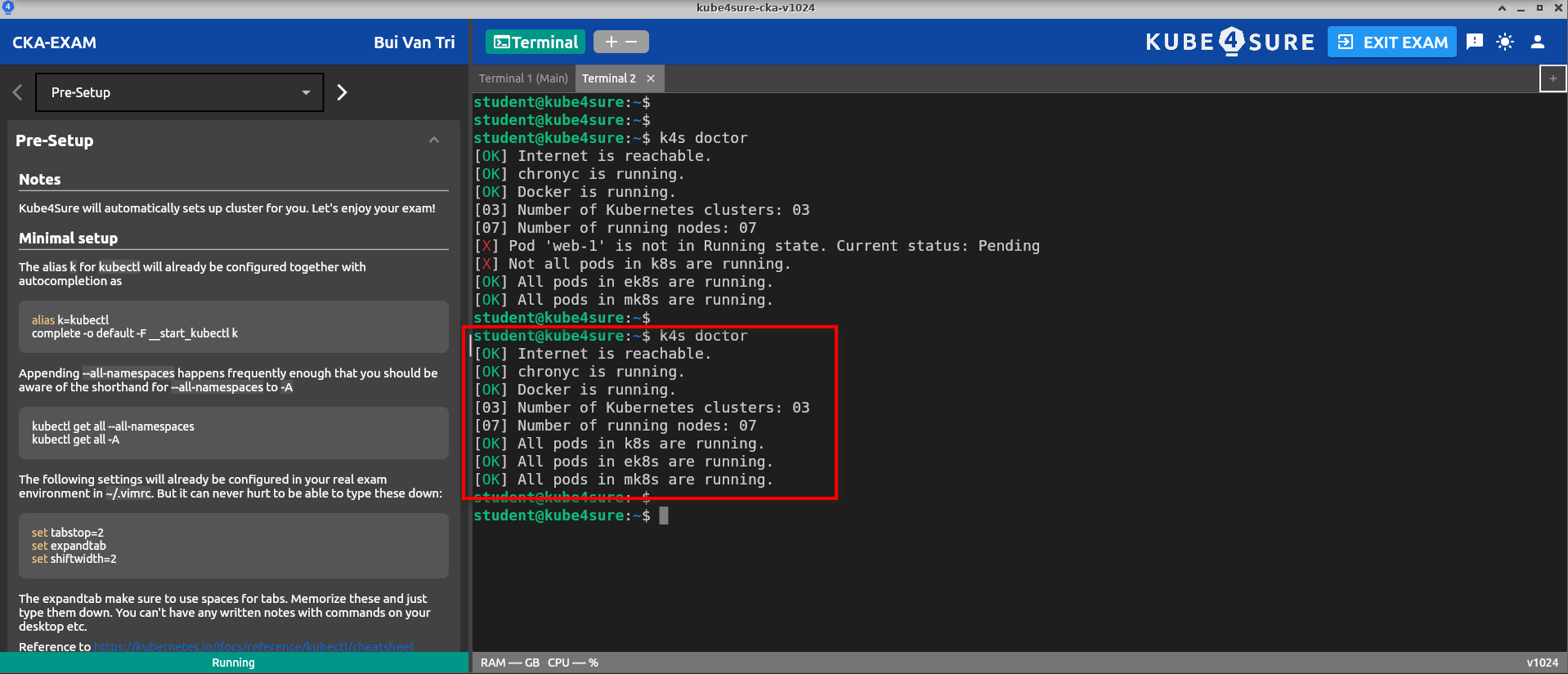
Note: Please wait a moment for all exam contexts to be ready.
How do I practice the exam in Kube4Sure?
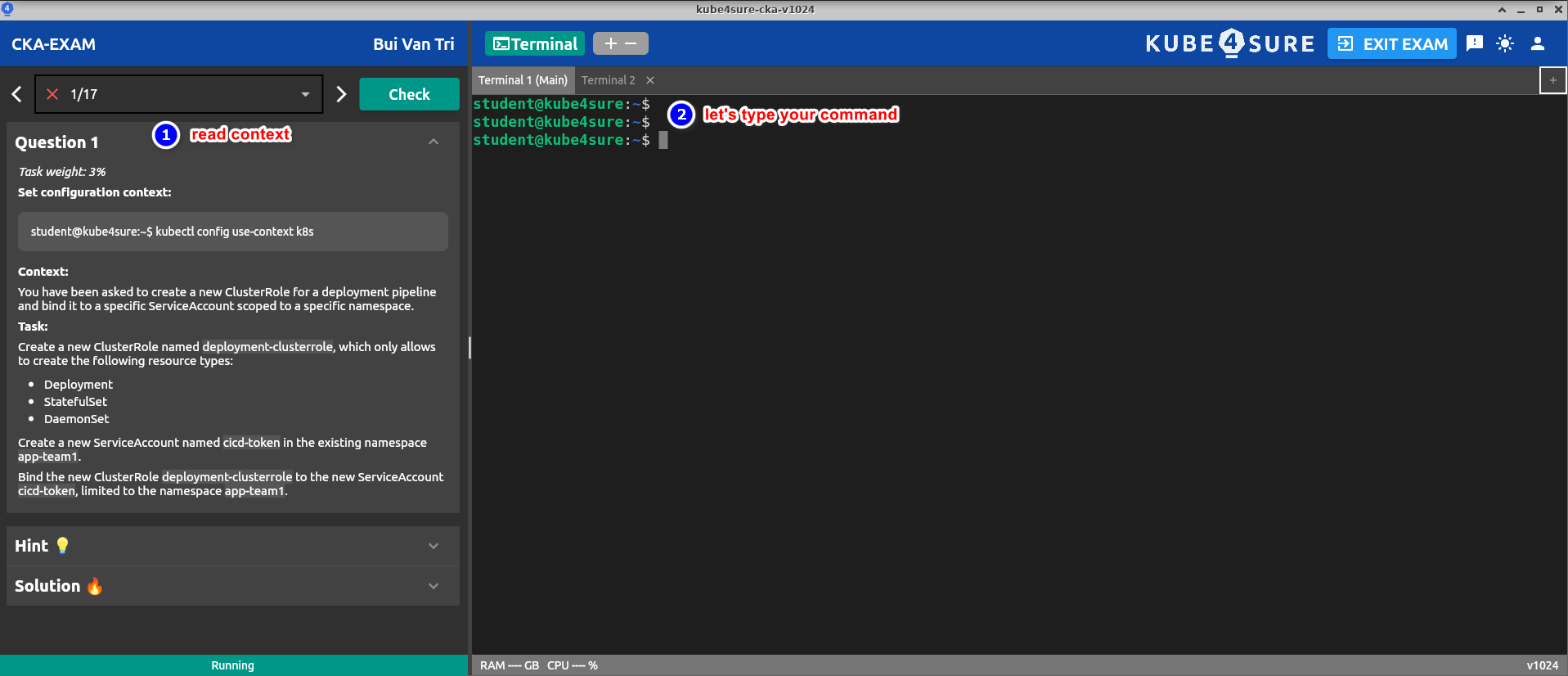
- Read the context of the exam. Please read the context or question carefully.
- Do the exam by executing any command in the terminal beside the context. Note: double-check your commands and ensure you operate the correct context and namespace if specific.
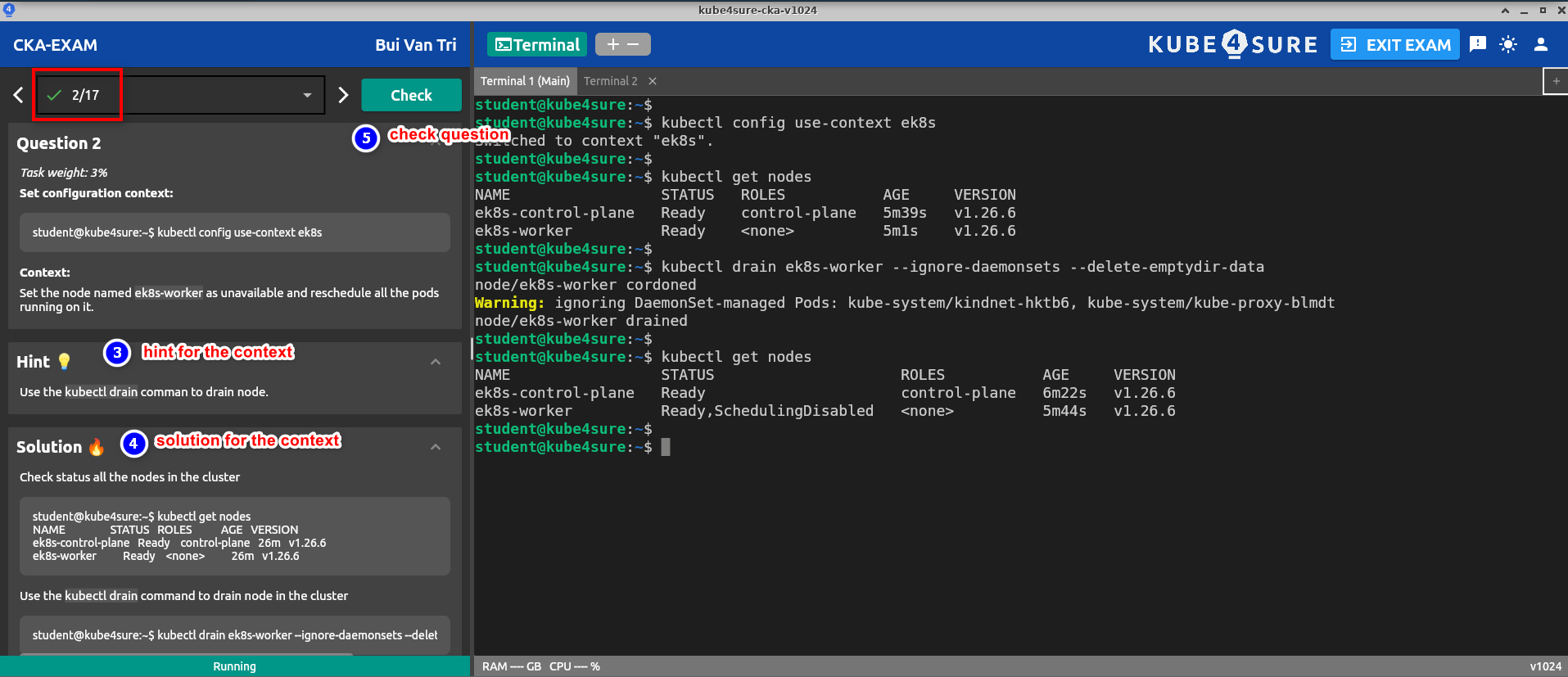
- (Optional) Hint can provide valuable insights into what’s expected or guide you in the right direction.
- (Optional) Only refer to the solution as a last resort if you cannot solve the task using your knowledge and the provided hints.
- Check the question with the check button.
Frequently Asked Questions
Question: Why is the local IP not showing for my VM?
Answer: For best security and performance, please use Network Adapter’s NAT.
Question: When I log in to the VM, I am facing an issue where the login says, 'Login is incorrect'?
Answer: Please follow these steps to troubleshoot:
- Step 1: Check your Internet. The Internet must be reaching.
- Step 2: A user can only log in once for each OVA file. If you need to change the virtual machine, please email kube4sure@gmail.com to request a license reset.
Question: How can I make sure all the necessary context is ready?
Answer: Please use the 'k4s doctor' command to check the infrastructure.
Note:
- For the Demo CKA Exam, there are 2 clusters and 5 nodes.
- For the Kube4Sure CKA Exam, there are 3 clusters and 7 nodes.
Question: How can I take the CKA Exam using a Mac with the M1 chip?
Answer: At this time, there is an issue with VMware Fusion on Mac M1 systems. Support will be available soon.